> For the complete documentation index, see [llms.txt](https://docs.hexabot.ai/llms.txt). Markdown versions of documentation pages are available by appending `.md` to page URLs; this page is available as [Markdown](https://docs.hexabot.ai/inbox.md).
# Inbox
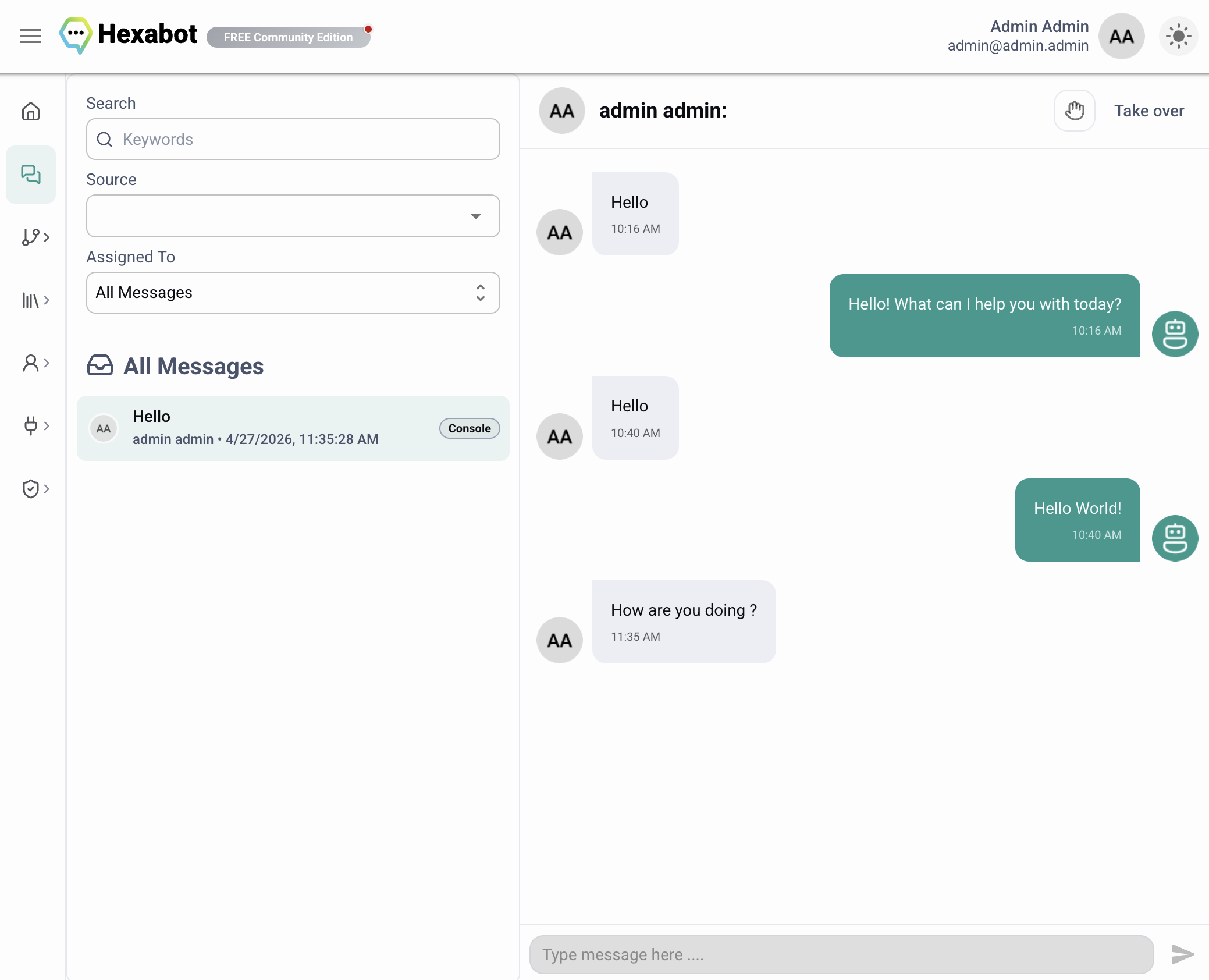
The Inbox is the operator workspace for reviewing subscriber threads and replying from the admin panel. It is organized as a two-pane view:
| Area | Purpose |
| ----------- | ----------------------------------------------------------------------------------------- |
| Thread list | Search, filter, and select subscriber threads. |
| Chat view | Read the selected thread, inspect subscriber context, assign ownership, and send replies. |
Open the Inbox from the sidebar or go to `/inbox/threads`. Selecting a thread updates the URL to `/inbox/threads/`, so the selected thread can be opened directly.
### Thread List
The left pane lists subscriber threads. Threads are loaded in pages and sorted by latest message activity, with the most recent threads first. Scrolling to the bottom loads more threads.
Each row can show:
| Item | Meaning |
| -------------- | -------------------------------------------------------------------------------------- |
| Avatar | Subscriber avatar or generated fallback. |
| Primary text | Thread title when available, otherwise subscriber name. |
| Secondary text | Subscriber name and thread date when a thread title is shown. |
| Source chip | Channel source associated with the thread, such as a connected page or channel source. |
Click a row to open the thread in the chat view.
#### Search
The search box filters threads by subscriber fields. In the current frontend, the search targets subscriber first name and last name. Search state is synchronized with the URL, so refreshing or sharing the URL preserves the query.
Use search when you know who you are looking for. Use source and assignment filters when you are triaging a queue.
#### Source Filter
The Source selector filters threads by active channel source. It supports selecting multiple sources.
Use this filter when operators are responsible for a specific channel, brand page, inbox source, or integration.
#### Assignment Filter
The Assigned To selector controls which threads appear in the list.
| Option | Shows |
| -------------- | ------------------------------------------------------------- |
| All Messages | All matching threads. |
| Assigned to me | Threads where the subscriber is assigned to the current user. |
| Others | Threads not assigned to the current user. |
The assignment filter is based on the subscriber's `assignedTo` field. If a thread is not visible under "Assigned to me", take over the thread or ask another operator to assign it to you.
### Chat View
The right pane displays the selected thread. If no thread is selected, the page shows an empty state.
The chat header shows:
* subscriber avatar;
* subscriber name;
* subscriber labels;
* assignment controls.
Messages are displayed chronologically. Older messages load when you scroll toward the top of the chat. The view automatically scrolls to the latest messages when a thread is opened.
#### Reading Messages
Incoming and outgoing messages are visually separated. Consecutive messages from the same sender are grouped to reduce repetition, while avatars are shown around the start or end of message groups.
Message timestamps are shown in a compact form. Hovering the timestamp shows the exact date and time.
Text messages support Markdown-style formatting. The frontend sanitizes rendered HTML before displaying it.
#### Sending Replies
The message composer is at the bottom of the chat view. In the current frontend, the operator composer sends text replies.
The composer is enabled only when the selected subscriber is assigned to the current user. If the composer is disabled, take over the thread or assign it to yourself first.
When a reply is sent, Hexabot creates an outgoing text message on the active thread and links it to the latest reply target for that thread.
### Assignments and Handover
Assignments decide who can actively handle a thread.
The chat header includes two assignment controls:
| Control | Purpose |
| ---------------------------- | --------------------------------------------------------------------- |
| Assign To selector | Choose an operator from the user list. |
| Hand button | Apply the selected operator assignment. |
| Take over / Hand back button | Assign the thread to yourself, or release it when you already own it. |
#### Taking Over a Thread
Use **Take over** when automation or another queue has escalated a thread that you need to answer.
After takeover:
* the subscriber is assigned to you;
* the thread appears under "Assigned to me";
* the reply composer becomes available for you.
#### Assigning to Another Operator
Use the Assign To selector when the thread should be handled by someone else.
Select the operator, then click the hand button to save the assignment.
#### Handing Back
Use **Hand back** when you are done handling the thread manually. The frontend clears your assignment from the subscriber. After handback, the thread no longer appears under "Assigned to me" for you, and the composer is disabled unless the thread is assigned back to you.
Use handback when automation should resume or when the thread no longer needs a specific human owner.
### Message Types
Hexabot renders several incoming and outgoing message shapes in the Inbox.
#### Incoming Messages
| Type | How it appears |
| ----------- | ---------------------------------------------- |
| Text | Rendered as formatted message text. |
| Postback | Rendered as text from the incoming payload. |
| Quick reply | Rendered as text from the incoming payload. |
| Attachment | Rendered with the attachment viewer. |
| Location | Rendered as an embedded OpenStreetMap preview. |
#### Outgoing Messages
| Type | How it appears |
| ---------------- | ------------------------------------------ |
| Text | Rendered as formatted message text. |
| Quick replies | Text message plus quick reply chips. |
| Buttons | Text message plus button chips. |
| Attachment | Rendered with the attachment viewer. |
| List or carousel | Rendered as horizontally scrollable cards. |
Quick replies and buttons are displayed as thread history. They are not operator-side controls for sending a new reply.
### Attachments
Attachment messages are rendered according to file type.
| File type | Inbox behavior |
| --------- | ----------------------------------------------------------------- |
| Image | Shows an inline preview. Click the image to open a larger viewer. |
| Audio | Shows an audio player. |
| Video | Shows a video player. |
| File | Shows the filename and a Download button. |
| Unknown | Shows the attachment URL or fallback text. |
If attachment metadata cannot be loaded, the Inbox shows an "attachment not found" style fallback instead of breaking the thread view.
### Location Messages
Incoming location messages are displayed as a map preview using latitude and longitude from the message payload.
The embedded map is meant for quick operator context. Use the original channel or customer record when exact address verification is required.
---
# Agent Instructions
This documentation is published with GitBook. GitBook is the documentation platform designed so that both humans and AI agents can read, navigate, and reason over technical content effectively. Learn more at gitbook.com.
## Querying This Documentation
If you need additional information that is not directly available in this page, you can query the documentation by asking a question.
Perform an HTTP GET request on the following URL with the `ask` and `goal` query parameters:
```
GET https://docs.hexabot.ai/inbox.md?ask=&goal=
```
`ask` is the immediate question: it should be specific, self-contained, and written in natural language.
`goal` is what the user is ultimately trying to achieve, the reason they need the answer. Sharing it helps GitBook give you a better, more relevant answer. A goal is most helpful when it describes the outcome the user wants rather than restating the question. For example, with `ask=how do I create an API token`, a goal like `automate deployments from our CI pipeline` lets GitBook tailor the answer to that use case.
The response will contain a direct answer to the question and relevant excerpts and sources from the documentation.
Use this mechanism when the answer is not explicitly present in the current page, you need clarification or additional context, or you want to retrieve related documentation sections.